 BP DiaryToolsArticles
10 best free blood pressure log apps for 2026
The right app depends on the cuff you already own and what you want to bring to your next appointment.
Published Updated 6 min read
Our first pick for Android or the web is BP Diary, the free blood pressure log we make. You can use it with a cuff that has no Bluetooth and print readings for any dates your doctor asks about. On an iPhone, start with Apple Health. If your monitor already sends readings to your phone, its own app may save you the most work.
The 10 apps at a glance
| App | Use it on | Best for |
|---|---|---|
| BP Diary | Android or web | Photographing a cuff display and printing a free PDF |
| Apple Health | iPhone | A guided log with reminders |
| SmartBP | iPhone or Android | Keeping a log you show on your phone |
| OMRON connect | iPhone or Android | Automatic transfers from a connected OMRON cuff |
| Withings | iPhone or Android | A free health report from a Withings cuff |
| beurer HealthManager Pro | iPhone or Android | Scanning a compatible Beurer display |
| Blood Pressure Diary by MedM | iPhone or Android | Bluetooth monitors from several brands |
| iHealth MyVitals | iPhone or Android | Sharing readings from an iHealth cuff |
| Blood Pressure (My Heart) | Android | Adding tags to explain a reading |
| Samsung Health | Android with Health Connect | Keeping cuff readings with your other health data |
We checked the makers’ pages and store listings on 17 and 18 November 2026. All ten apps are free to download or use. A printable report sometimes costs extra.
1. BP Diary
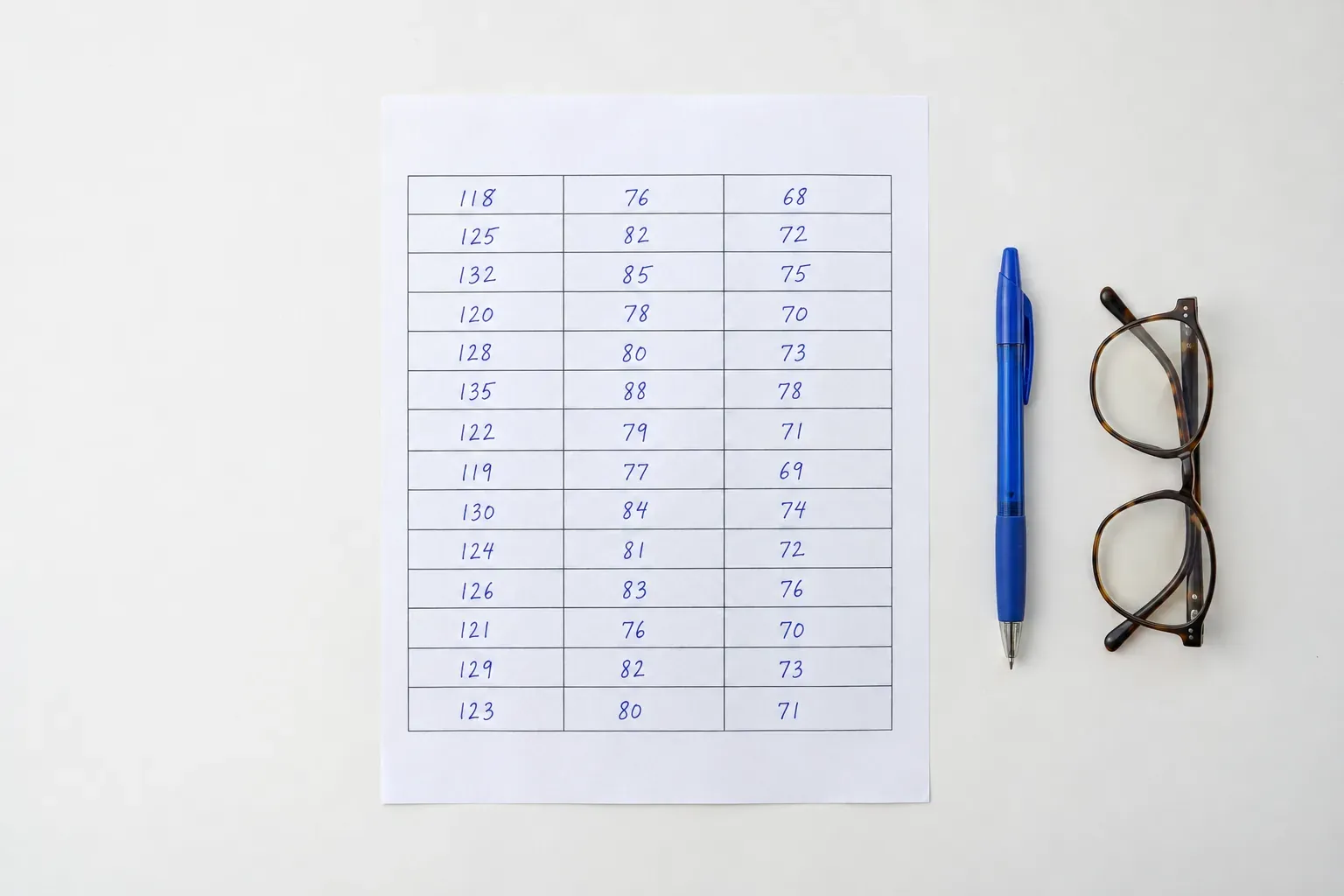
If you’ve been taking pictures of your monitor, BP Diary can turn those photos into a dated log. Open a photo of an earlier reading or take one the next time you use your cuff. The app copies the numbers from the display for you to check before you save. You can also type in readings from a paper log with their original dates and times. You can do all of this without an account or ads.
Say your doctor asks whether your readings tend to be higher in the morning. The diary shows your morning and evening averages separately. For the appointment, choose the dates since your last visit and make a free PDF with the individual readings and their average. You can include a note you saved with a reading, so you can remember which day you used a different cuff.
2. Apple Health
On an iPhone 11 or later running the latest iOS, open Health, go to Browse, then Heart, and look for Blood Pressure Log. You can enter the numbers from a regular cuff and set a reminder for the next reading.
Apple offers two schedules. One collects morning and evening readings for a week to discuss your risk of high blood pressure. The other collects daily readings for four weeks to help you and your doctor see what affects your blood pressure. If you have a visit coming up, check the dates. Apple makes the PDF available once you’ve completed the log. Apple’s blood pressure log guide
3. SmartBP
SmartBP takes typed readings on iPhone and Android. On iPhone, if your monitor already sends its numbers to Apple Health, SmartBP can copy them into your log for free. That’s handy if you have a history you’d otherwise have to type again.
Printing or sharing a PDF requires Premium. If you usually show the log on your phone, that difference may never matter. SmartBP’s free and paid features
4. OMRON connect
With a Bluetooth OMRON monitor, start by looking up the model number on the monitor itself. If it’s on the compatibility list, OMRON connect can copy your readings to your iPhone or Android phone. The free version keeps your history and includes the basic health report. The paid plan adds a more detailed report with health insights. OMRON’s compatibility list and plan comparison
5. Withings
If you already use a Withings cuff, you can keep using its app for your appointment. The free version lets you share a PDF or export your numbers as a spreadsheet (CSV). Withings plan comparison
For a PDF, open the Share tab and choose Health Report. You can pick your own dates within a three-month span. If your doctor asks for six months of readings, make two reports. Withings guide to sharing a report
6. beurer HealthManager Pro
Look for Scan & Save if you have a Beurer monitor without Bluetooth. On supported models, you can point your phone’s camera at the display to copy the reading. Later, you can look through the readings on a graph and add a short comment to explain one. Beurer lists PDF and CSV exports but doesn’t say whether either costs extra. Beurer’s app listing
7. Blood Pressure Diary by MedM
MedM is worth a look if you want to enter readings by hand now and keep the same diary when you switch to a Bluetooth cuff. Its supported brands include A&D Medical, Omron and Microlife. Check your exact model before pairing it.
Both typed entries and transfers from compatible monitors are part of the free diary. You can use it without registering, see your history and make a basic data export. The PDF and Excel reports for your doctor require Premium. MedM’s diary features
8. iHealth MyVitals
If the label on your cuff says iHealth Track, Neo or Push, it pairs with MyVitals. Once the readings sync, you can look through them on a graph without copying each one from the monitor. iHealth’s compatible devices
To send just the readings since your last visit, open Account, choose Share Data, then Blood Pressure. Select the dates and choose a PDF for printing or a spreadsheet (CSV or XLS) if you want to work with the numbers. iHealth’s sharing guide
9. Blood Pressure (My Heart)
My Heart on Android lets you tag a reading with a detail you might forget by your next visit, like having just come back from a walk. You can also point your phone at the cuff display and check the numbers before saving. The log stays on your device and you can start without an account.
The free app shows ads. Premium removes them. The maker also lists a PDF report with charts but doesn’t specify which plan includes it. My Heart’s Google Play listing
10. Samsung Health
If you already use Samsung Health for steps or sleep, you can keep your blood pressure readings there too. On Android, Health Connect can pass readings from your cuff’s app to Samsung Health if the cuff app shares blood pressure data with it. In Samsung Health settings, open Health Connect and check the permissions for blood pressure. After your next cuff reading, look for those same numbers in Samsung Health before you stop keeping a separate log. Samsung’s Health Connect guide